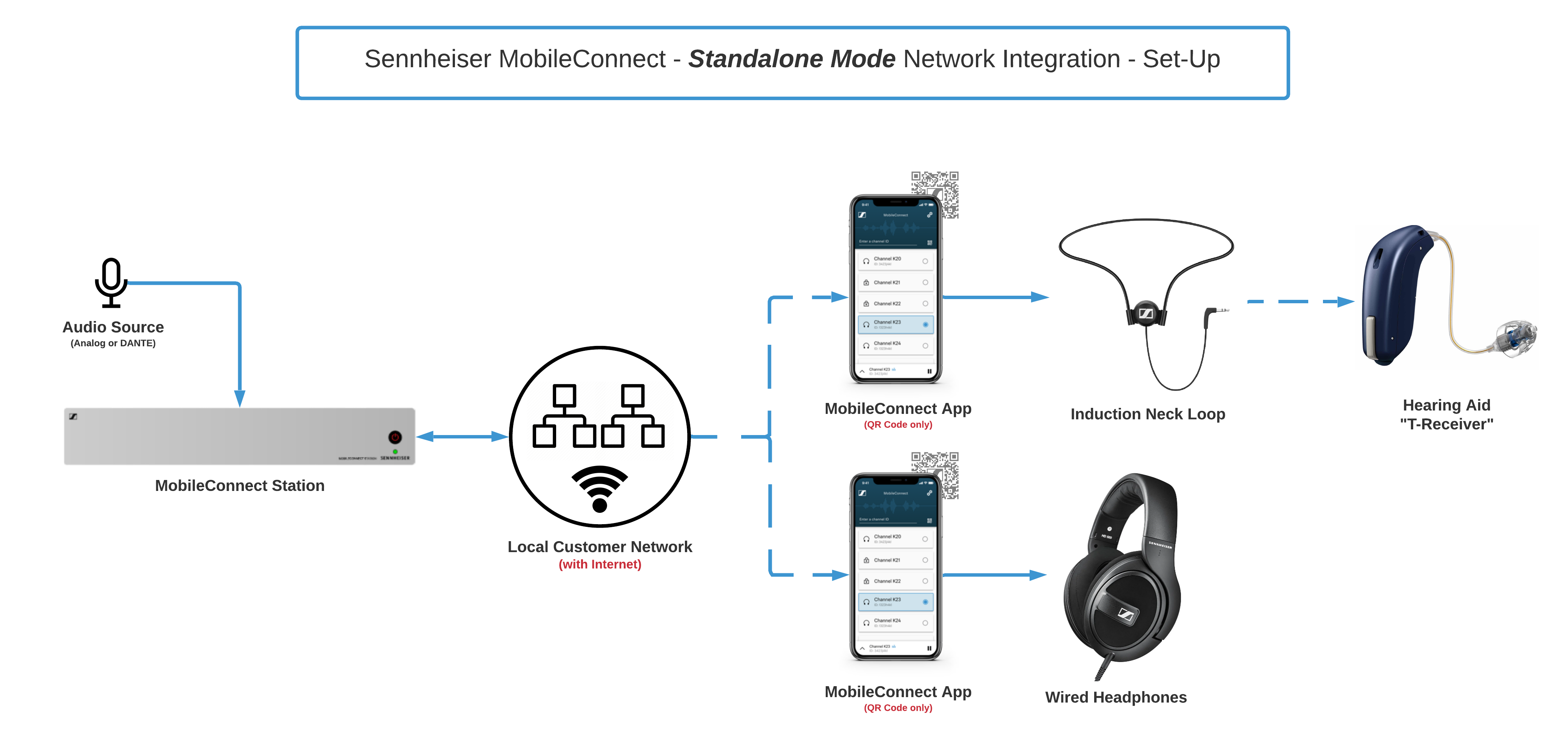
Sennheiser MobileConnect is a Wi-Fi–based audio streaming solution designed for conferencing, education, and assistive listening. For small-scale deployments or scenarios requiring rapid setup, Standalone Mode is the optimal choice. It operates without a central management system and does not require Internet access—only a MobileConnect Station and a stable Wi-Fi network.
This guide provides a detailed step-by-step setup procedure for configuring MobileConnect in Standalone Mode based on Sennheiser’s technical documentation, along with additional optimization practices to ensure stable and reliable audio performance in real-world applications.
Guide to Setting Up MobileConnect in Standalone Mode
Standalone Mode allows the MobileConnect Station to operate independently without a MobileConnect Manager, ideal for small auditoriums, classrooms, churches, and simple audio-over-WiFi setups.
Purpose of Standalone Mode
- Lightweight deployment without a management server
- Stable operation with a single Station and WiFi network
- Suitable for assistive listening, interpretation, and personal audio streaming
Connecting the MobileConnect Station
- PoE / Streaming Port: connects to WiFi infrastructure
- Control Port: access to administration interface
First-time Access
- Set static IP on PC: 192.168.0.2 / 255.255.255.0
- Connect PC to Control Port
- Visit https://192.168.0.10
- Log in with password Sennheiser
Enable Standalone Mode
- Go to General → switch to Standalone Mode
- Update firmware if the option does not appear
Network Configuration
- Assign Static or DHCP IP for Control & Streaming ports
- Avoid using default IP 192.168.0.10
Create & Configure Audio Channels
- Open Audio & Streaming
- Create a new channel → enable it
- Select mono/stereo
- Select input source from Mixer
- Save configuration
QR Code Handling
- Each channel generates a unique QR code
- Add PIN for restricted access if needed
- Print & place QR codes in the room for end users
Testing with MobileConnect App
- Connect phone to the same WiFi
- Open Sennheiser MobileConnect app
- Scan QR code → start listening
Deployment Notes
- Use enterprise-grade Access Points
- Prefer 5GHz WiFi
- Distribute APs for large user density
- Always update firmware before handover